
A complete profile helps you build trust, connect with other members, and unlock the full experience on TheBenefactor.net.
Whether you’re here to share ideas, earn rewards, grow your network, or participate in communities, a fully completed profile makes you more discoverable and credible.
In this guide, we’ll walk you through every step to achieve a 100% complete profile.
Why Completing Your Profile Matters 🌟
Users with complete profiles are more likely to:
✅ Build trust with other members
✅ Receive more engagement on their posts
✅ Get better content and community recommendations
✅ Unlock verification opportunities
✅ Earn rewards through security and verification tasks
Let’s get started!
Step 1: Open Your Profile Settings ⚙️
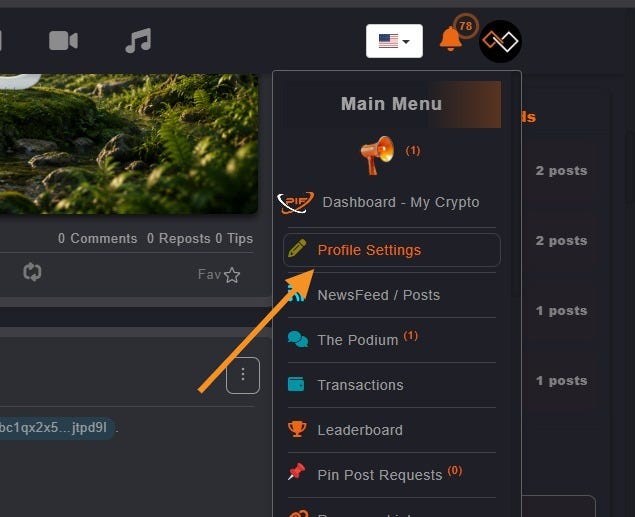
The journey begins in your account settings.
How to access Profile Settings:
- Log in to your account.
- Click your profile picture or username.
- Open the Profile Settings dashboard.
- Use the Account Settings menu on the left side (or top menu on mobile).
From here, you’ll be able to customize every aspect of your profile.
Step 2: Complete Your Basic Information 📝
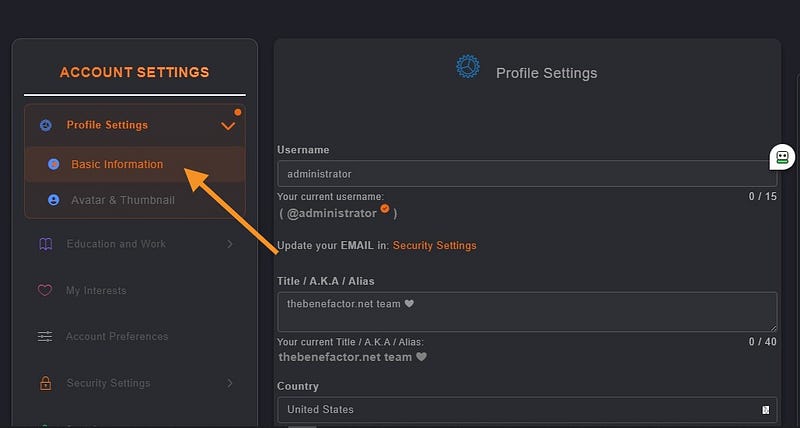
Your basic information helps others learn who you are.
Navigate to:
Profile Settings → Basic Information
Username
Choose a unique username (up to 15 characters).
Title / Alias
Add an optional title or nickname.
Examples:
- CryptoEnthusiast
- BlockchainResearcher
- CommunityBuilder
- TechLead
Location
Select your:
- Country
- State / Province
- City
This helps users connect with people from their region.
About Me
Write a compelling bio (up to 2,500 characters).
Tell people:
- Who you are
- What you’re interested in
- What you do
- Why you’re on TheBenefactor.net
💡 Pro Tip: Mention other users by typing @username to create profile links directly inside your bio.
Step 3: Add Your Avatar & Cover Image 🖼️
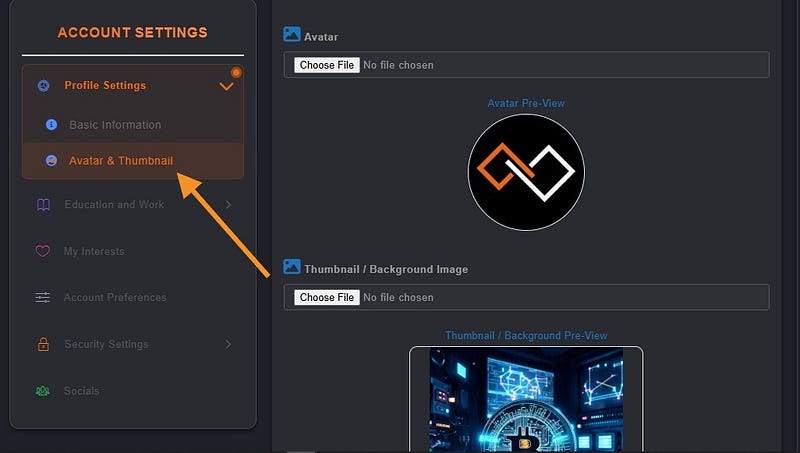
People remember faces before usernames.
Navigate to:
Profile Settings → Avatar & Thumbnail
Avatar
Upload a clear profile photo using:
- JPG
- PNG
- WebP
Your avatar appears beside your posts, comments, and profile.
Thumbnail (Cover Photo)
Upload a banner image that represents your personality, brand, project, or interests.
A great cover image instantly makes your profile stand out.
Step 4: Showcase Your Education & Work Experience
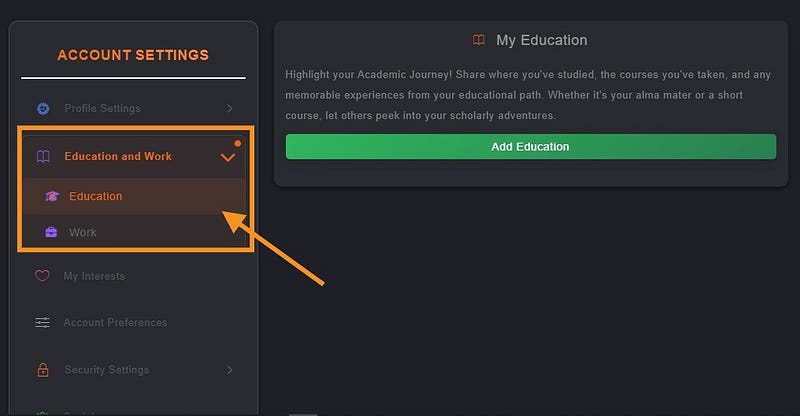
Help others understand your background and expertise.
Work Experience
Add:
- Company Name
- Position / Designation
- Employment Dates
- Description of Your Role
Education
Add:
- School, College, or University
- Years Attended
- Relevant Details
Whether you’re a student, entrepreneur, developer, creator, or professional, sharing your experience adds credibility to your profile.
Step 5: Add Your Interests ❤️
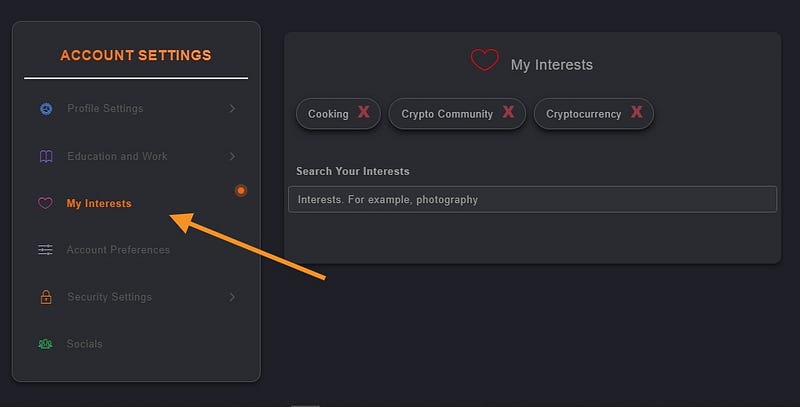
Personalize your experience by telling us what matters to you.
Navigate to:
Profile Settings → My Interests
What You Can Do
- Search for interests by keyword
- Add up to 25 interests
- Update them anytime
Your interests help The Benefactor recommend:
- Relevant content
- Communities
- Users to follow
- Discussions you may enjoy
The more accurate your interests, the better your experience becomes.
Step 6: Connect Your Social Profiles 🔗
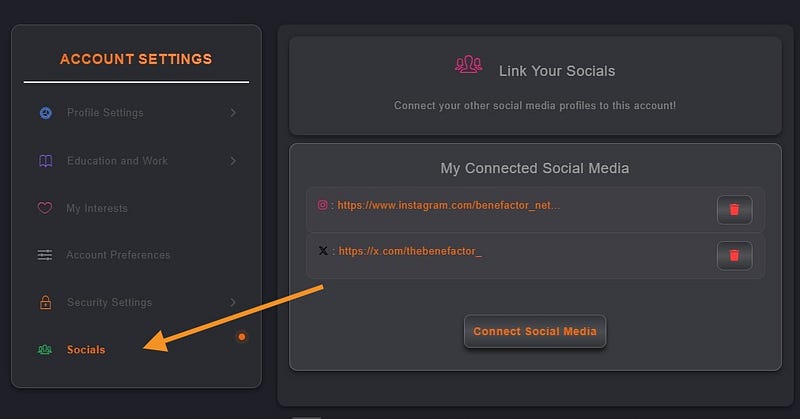
Let people find you across the web.
Navigate to:
Profile Settings → Socials
You can connect accounts such as:
- X (Twitter)
- And more
Adding social links increases trust and makes networking easier.
Step 7: Secure & Verify Your Account 🛡️
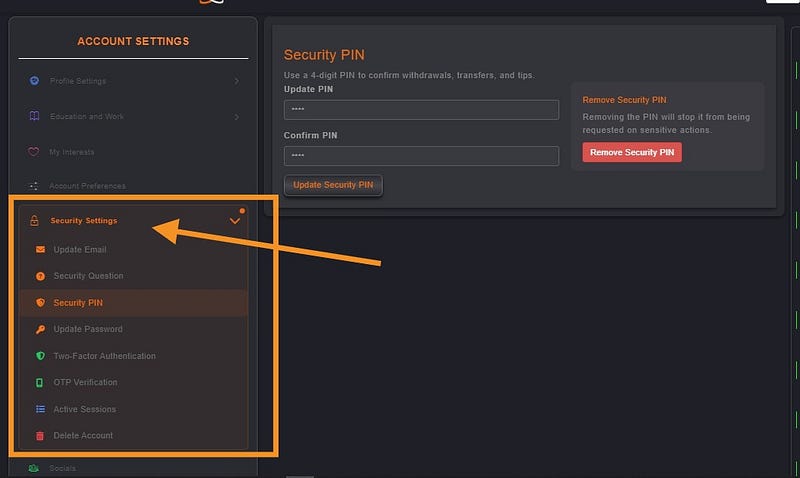
Security isn’t just important, it’s rewarding.
Visit:
Profile Settings → Security Settings
Completing security tasks helps protect your account while also earning rewards through the Task Center.
Verify Your Email 📧
Profile Settings → Security Settings → Update Email
Confirm ownership of your email address.
Create a Security PIN 🔐
Profile Settings → Security Settings → Security PIN
Protect sensitive actions such as wallet-related activities.
Enable Email OTP ✉️
Profile Settings → Security Settings → OTP Verification
Receive one-time passwords for additional protection.
Enable Two-Factor Authentication (2FA) 📱
Profile Settings → Security Settings → Two-Factor Authentication
Add another layer of security to your account.
This is highly recommended for all users.
Get Verified with KYC Verification ✔️
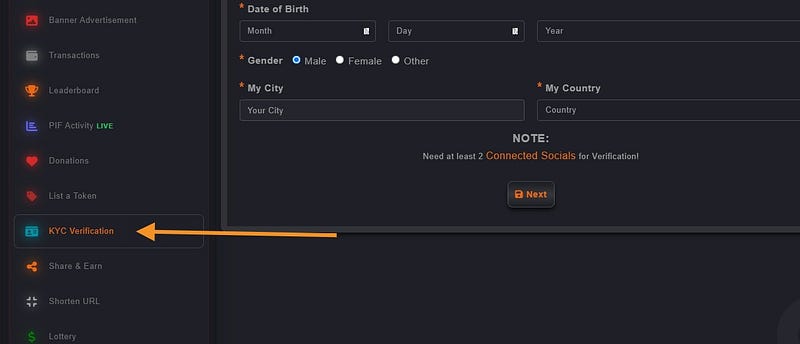
Want a verified badge and additional rewards?
Complete KYC verification.
My-Dashboard → KYC Verification
Level 1 Verification
Provide:
- Full Legal Name
- Date of Birth
- Gender
Level 2 Verification
Upload:
- Government-issued ID (Front & Back)
- Clear Selfie Photo
Verification helps create a safer and more trusted community for everyone.
Earn Rewards for Security Tasks 🎁
Did you know that improving your account security can earn you rewards?
After completing eligible security actions, visit the Task Center and check the Security Tasks section.
You may receive rewards for:
- Email Verification
- Security PIN Setup
- OTP Activation
- 2FA Activation
- KYC Verification
Protect your account and get rewarded at the same time.
Final Step: Save Your Changes ✅
Don’t forget to save your progress.
Whenever you update information, click:
Update Changes or Save
This ensures your profile information is stored correctly.
You’re All Set! 🎉
Congratulations!
Your profile is now complete and ready to make a great first impression on TheBenefactor.net.
A complete profile helps you build credibility, connect with like-minded people, unlock rewards, and enjoy everything the platform has to offer.
Take a few minutes today to complete your profile — and start getting the most from your experience on TheBenefactor.net.